
Description
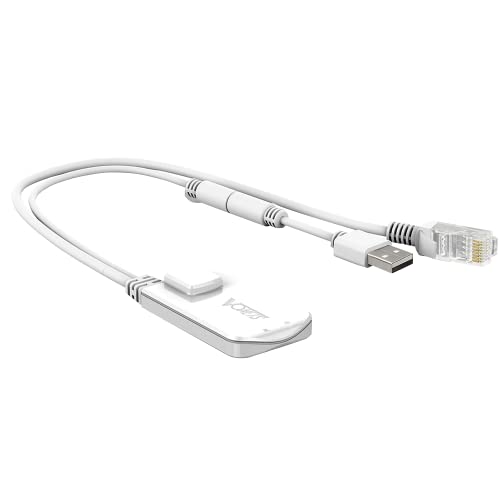
Vonets VAP11N-300 Wireless Mini WiFi Bridge/Repeater The – Features & Prices in Saudi Arabia :
Vonets VAP11N-300 Wireless Mini WiFi Bridge/Repeater The Best Partner of IP Device/IP Printer/xbox/ps3/Dreambox Professional WiFi Bridge
Product Dimensions
2.36 x 1.42 x 0.31 inches
Item Weight
1.41 ounces
ASIN
B01198RNYW
Item model number
VAP11N-300
Is Discontinued By Manufacturer
No
Date First Available
July 9, 2015
Manufacturer
Shenzhen Houtian Network Communication Technology Co.,TLD
Test video – Vonets VAP11N-300 Wireless Mini WiFi Bridge/Repeater The :
Product highlights :
Questions & Answers – Vonets VAP11N-300 Wireless Mini WiFi Bridge/Repeater The :
Technical specifications – Vonets VAP11N-300 Wireless Mini WiFi Bridge/Repeater The :
Purchase advice :
-
Warranty :
Check the duration of the warranty and also the faults and defects it covers. Is it complete or limited? and What is included in the warranty (parts, repairs or both)?
-
Shipping :
Is delivery offered? And how long does it take to get delivered (Delivery time)
-
Proof of purchase :
Does the shop give you an invoice ?
-
After-sales service :
Do they have an after-sales service to have information about the installation or operation (instructions for use). Also in case of problem, it is the seller who takes charge or you must contact the manufacturer or supplier yourself.
_____________________________
D. S (verified owner) –
Finally got it to work! – I had to give this product 3 stars because of the instructions; I wasted a lot of time setting this up. Once you get it up and running, the device works perfectly. Things that is mandatory that you have to have: Internet Explorer, your network name, and your router password. Make sure the device you are connecting this device to is not connected to the internet wirelessly or wired. Enter the […] and enter the password and username as directed in the manual. From there, you just follow the steps in the book. After you finish setting it up, you going to be instructed to reboot the device itself. I just restarted the device it was connected to. Once you do that, you can connect this device to any other device that have ethernet and USB ports on it.
M. P (verified owner) –
Does what it needs to do. – As others have said, the instructions aren’t super helpful but if you know what you are trying to accomplish you can navigate them well enough to get it to work.
S. T (verified owner) –
Exactly what I was looking for! – I was trying to connect my Tivo Mini to my wireless network. In the past I used a media bridge like Cisco’s WES610N. Tivo’s wireless-N adapter was $50, Cisco’s media bridges were $70-$120, and other branded media bridges weren’t very highly reviewed. For
M. P (verified owner) –
Does what it needs to do. – As others have said, the instructions aren’t super helpful but if you know what you are trying to accomplish you can navigate them well enough to get it to work.
I. D (verified owner) –
So far very good, very bright LED’s – I needed this as a bridge to connect my IP printer to a WIFI network. The setup was very easy (I have networking experience).
H. K (verified owner) –
Ditch the instructions – I bought this bridge to connect my laserjet printer to our home wireless network. The product itself is excellent and did the job I wanted but the instruction booklet that came with it is about the worse in the world. Take this small bit of advice. When you get your package in the mail, open it up and ditch the little booklet inside. I searched You Tube for installation help and found that setting this bridge wasn’t at all daunting.
H. K (verified owner) –
Ditch the instructions – I bought this bridge to connect my laserjet printer to our home wireless network. The product itself is excellent and did the job I wanted but the instruction booklet that came with it is about the worse in the world. Take this small bit of advice. When you get your package in the mail, open it up and ditch the little booklet inside. I searched You Tube for installation help and found that setting this bridge wasn’t at all daunting.
I. D (verified owner) –
So far very good, very bright LED’s – I needed this as a bridge to connect my IP printer to a WIFI network. The setup was very easy (I have networking experience).
H. D (verified owner) –
VAP11N Signal Loss – I need a Wi-Fi bridge from a dvd disk changer located approximately 15 ft. from my router Ext. Setup was difficult at the Vonets website due to their home page design. There are no instructions as to how to proceed. One has to enter device name and password in greyed out boxes. A greyed out box means no data entry possible, right? Took me a long time to figure out what to do. Anyway, after fumbling around for 30 minutes I finally stumbled onto data entry in greyed out boxes. The next page is the settings page. Selecting your router and entering router password is easy. Vonets recommends leaving DCHC off. My setup required DCHC ON so this needed to be selected. Vonets then advises against this. Confusing! Against this advice I proceeded to reboot which did set the required parameters.
S. T (verified owner) –
Exactly what I was looking for! – I was trying to connect my Tivo Mini to my wireless network. In the past I used a media bridge like Cisco’s WES610N. Tivo’s wireless-N adapter was $50, Cisco’s media bridges were $70-$120, and other branded media bridges weren’t very highly reviewed. For
D. O (verified owner) –
Difficult to install, but works well – As others have noted, it’s not the easiest thing to install, but once set up, it’s solid.
K. O (verified owner) –
Ditch the instructions and look online! – As others have noted, the instructions that came with the product were pretty useless, describing what appears to be a different product (or perhaps an earlier version of this product?). Searching online for the VAP11N product, I found the vonets website and found the “Quick Setting Guide”, and with this I was able to quickly configure the dongle. It works great with my printer, allowing my printer to work wirelessly across the network!
H. D (verified owner) –
VAP11N Signal Loss – I need a Wi-Fi bridge from a dvd disk changer located approximately 15 ft. from my router Ext. Setup was difficult at the Vonets website due to their home page design. There are no instructions as to how to proceed. One has to enter device name and password in greyed out boxes. A greyed out box means no data entry possible, right? Took me a long time to figure out what to do. Anyway, after fumbling around for 30 minutes I finally stumbled onto data entry in greyed out boxes. The next page is the settings page. Selecting your router and entering router password is easy. Vonets recommends leaving DCHC off. My setup required DCHC ON so this needed to be selected. Vonets then advises against this. Confusing! Against this advice I proceeded to reboot which did set the required parameters.
D. O (verified owner) –
Difficult to install, but works well – As others have noted, it’s not the easiest thing to install, but once set up, it’s solid.
K. O (verified owner) –
Ditch the instructions and look online! – As others have noted, the instructions that came with the product were pretty useless, describing what appears to be a different product (or perhaps an earlier version of this product?). Searching online for the VAP11N product, I found the vonets website and found the “Quick Setting Guide”, and with this I was able to quickly configure the dongle. It works great with my printer, allowing my printer to work wirelessly across the network!
D. S (verified owner) –
Finally got it to work! – I had to give this product 3 stars because of the instructions; I wasted a lot of time setting this up. Once you get it up and running, the device works perfectly. Things that is mandatory that you have to have: Internet Explorer, your network name, and your router password. Make sure the device you are connecting this device to is not connected to the internet wirelessly or wired. Enter the […] and enter the password and username as directed in the manual. From there, you just follow the steps in the book. After you finish setting it up, you going to be instructed to reboot the device itself. I just restarted the device it was connected to. Once you do that, you can connect this device to any other device that have ethernet and USB ports on it.